


If you’re having trouble logging into our customer community at community.thomasjfrank.com, resetting your password is the quickest way to get back in. Here’s how to do it.
Reset Your Password
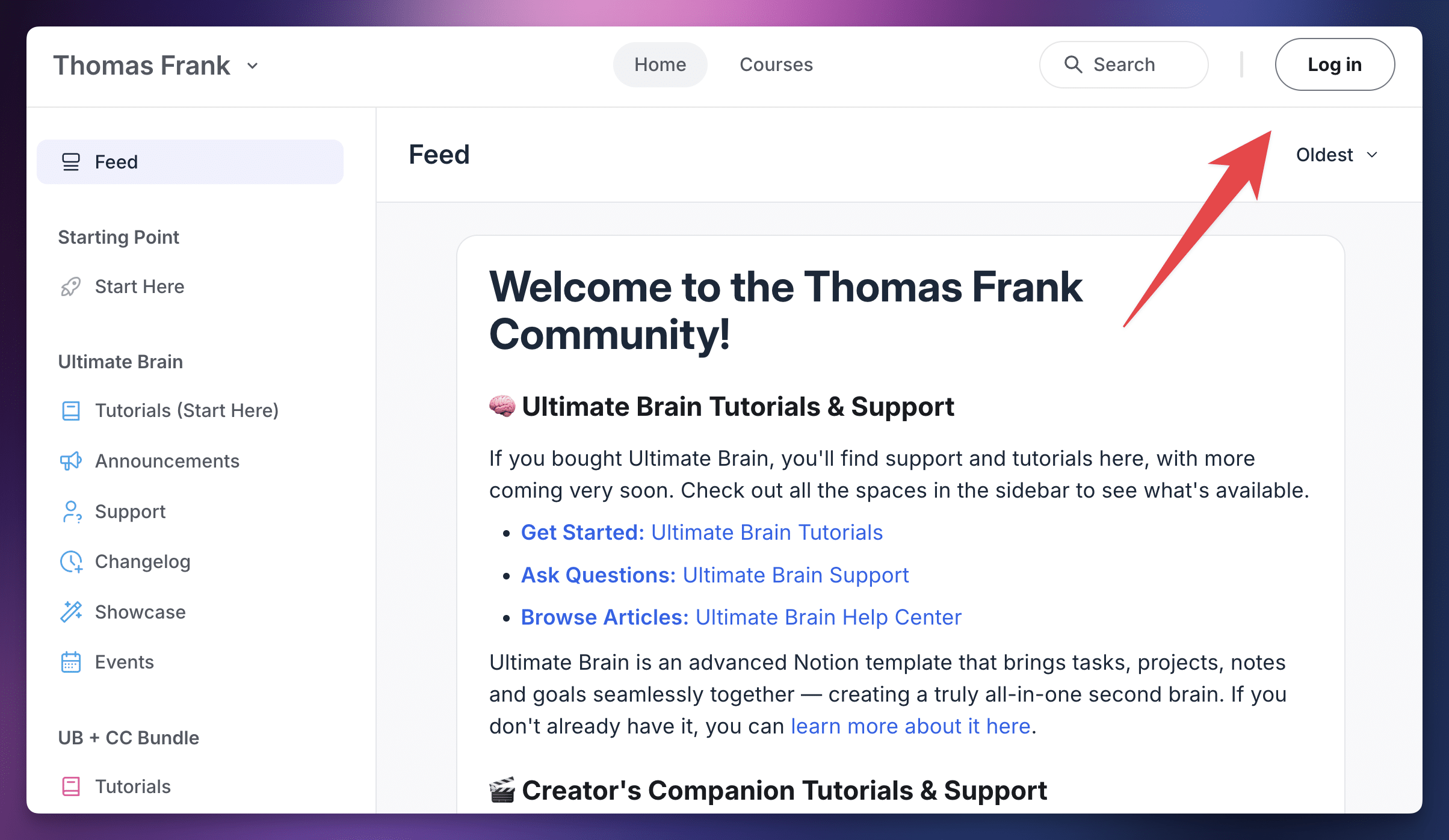
Head to community.thomasjfrank.com and click the Login button at the top-right corner of the page.
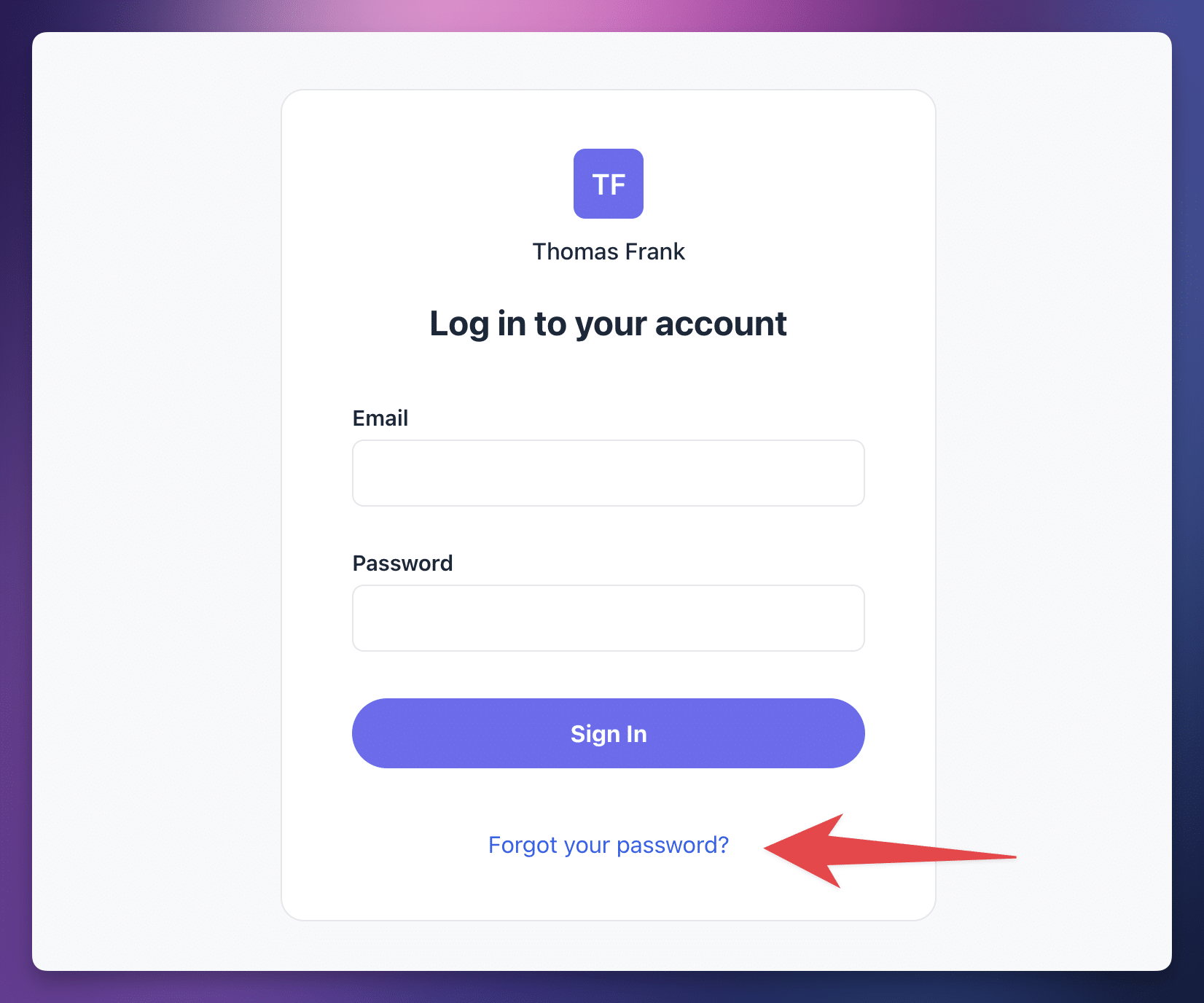
On the login screen, click the Forgot Your Password? link near the bottom.
You’ll be prompted to enter the email address associated with your community account. Enter it, and you’ll receive an email with a link to reset your password.
Click the link in the email, set a new password, and you’re all set.
Note: If you’re not sure which email you used to sign up for the community, try checking your inbox for past emails from our community. You may have signed up with a different email than the one you used to purchase your template.
For more detailed instructions on changing or resetting your password, you can also refer to Circle’s official help article on the topic. Our community runs on Circle, so their instructions apply here.
Log Back In
Once you’ve reset your password, head back to community.thomasjfrank.com and log in with your email and new password. You should now have access to all of the community spaces associated with your template purchase.
Still Can’t Log In?
If resetting your password doesn’t solve the issue, email us at [email protected] from the same email address you use in our community, and we’ll help you regain access.
If you need to contact us from a different email address, please have a purchase receipt for your template handy so we can verify your purchase. It’ll likely be in your email inbox (or in an archive folder), but you can also see our instructions on generating a purchase invoice if you need to do so.
How to Leave the Community
If you’d like to leave the community (to declutter your Circle account’s community sidebar, for example), follow these steps:
Click your profile picture in the top-right corner of the page, then choose Edit Profile.


In your Account Settings, head to the Authentication tab.
Click Deactivate My Account.

Note: Once you deactivate your account, you will no longer be able to log in. If you need to log in again in the future, you can either:
- Use the invitation link that was sent to your email when you purchased your template
- Log into your customer portal at Lemon Squeezy, find your purchase, and access the invitation link that way (Lemon Squeezy purchase only)
- Email us at [email protected]. If you do, please include your Order Number, or email us from the email you used to make your purchase.