


If you’ve accidentally clicked Leave Workspace in Notion and lost access to your data (including your copy of one of our templates), first, don’t panic. Your data almost certainly still exists. Leaving a workspace doesn’t delete anything; it simply removes your access to it.
Here’s how this can happen, and what you can do to regain access.
Copy link to headingWhat Does Leaving a Workspace Do?
The Leave Workspace button only appears in Notion workspaces that have multiple Members. Even if a single-Member workspace has Guests, the option will not be shown. This means that if you were able to click it, there was at least one other Member in your workspace.
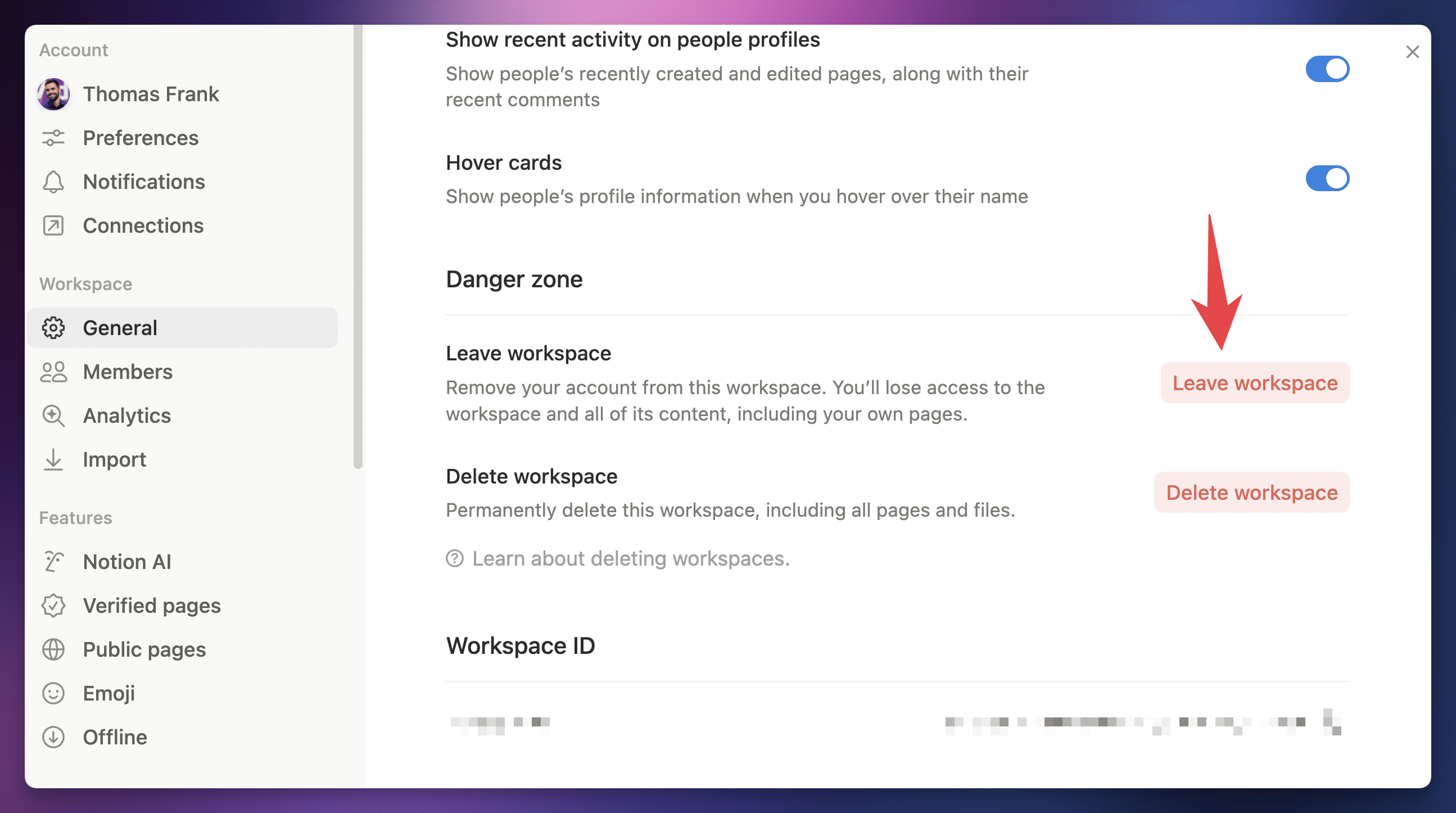
In single-Member workspaces, “Leave Workspace” will not be shown. You will only see “Delete Workspace” in the Danger Zone section.
There are a couple of common ways this can happen without you realizing it:
- You logged into Notion with a different email address at some point, which created a second Member in the workspace. This is especially easy to do if you log into Notion with multiple email address on the same custom domain.
- You invited another person to your workspace as a Member.
When you leave a workspace, Notion transfers ownership to one of the remaining Members. That’s why you may see a message saying that a request for access was sent to the “owner” — that owner is someone who was still in the workspace after you left.
Copy link to headingHow to Regain Access
Copy link to headingCheck Your Other Email Accounts
If you’ve ever logged into Notion with more than one email address, it’s possible that your other email is still a Member (and now the owner) of the workspace you left.
Try logging into Notion with every email address you control. Once logged in, click the workspace name at the top-left corner of the sidebar to see all workspaces associated with that account. The workspace you left from your primary email may show up there.
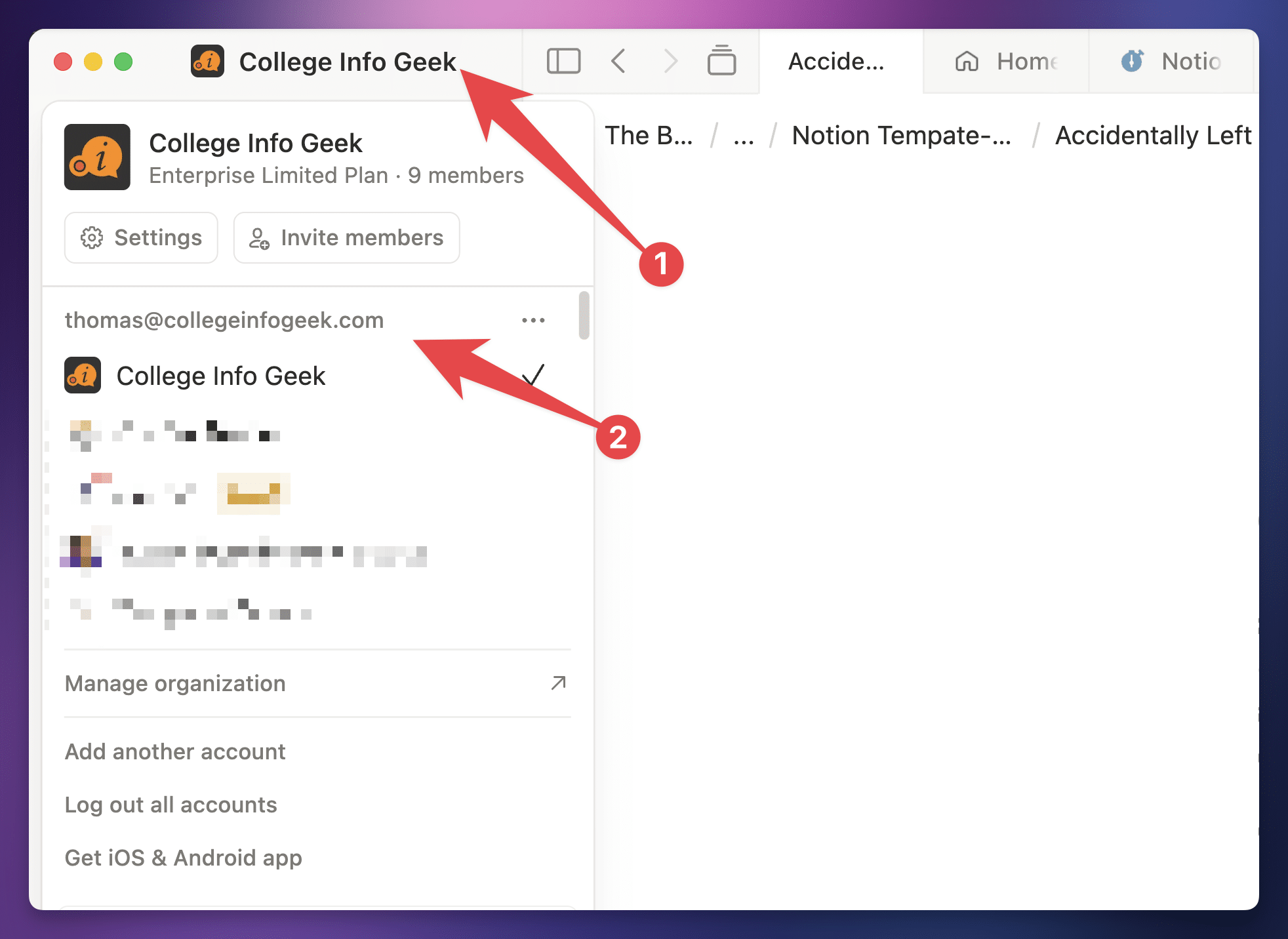
You should also search each of your email inboxes for past emails from Notion — this can help you figure out which email addresses have been associated with a Notion account.
If you find the workspace under another email, you can use that account to invite your primary email back as a Member.
Copy link to headingReach Out to Remaining Members
If one or more other people were Members in your workspace (not Guests), then one of them is now the Workspace Owner. In the case that only one other person was a Member in the workspace, that person is definitely the owner now.
In this case, you’ll need to reach out to the new Workspace Owner and ask to have your access restored.
Copy link to headingContact Notion Support
If none of the above steps work, your best option is to email Notion’s official support team at [email protected] so see if there are any other options available.
Copy link to headingA Note About Our Templates
Our templates are essentially blueprints that get copied into your Notion workspace when you first set them up. Once copied, the template and all the data you add to it live entirely within your workspace — we don’t have any connection to your Notion account or workspace data.
This means we’re unable to restore access to your workspace on our end. However, since leaving a workspace doesn’t delete any data, the recovery steps above should help you get back in.