


In March of 2026, Notion shipped a new database layout type called Dashboard.
Dashboards are quite different from other layout types. Instead of pulling data from a single data source, as nearly all other layout types do (except Forms), they give you a canvas on which you can create widgets. Each of these widgets is like a mini-linked database view, able to pull from any data source.
Essentially, Dashboard views provide you an easier way to create complex, multi-column views that show you lots of data at once. If you need to see multiple charts on a single page, for example, a Dashboard is the easiest way to do that. Here’s a video that full covers how Dashboards work (click here to watch directly on YouTube):
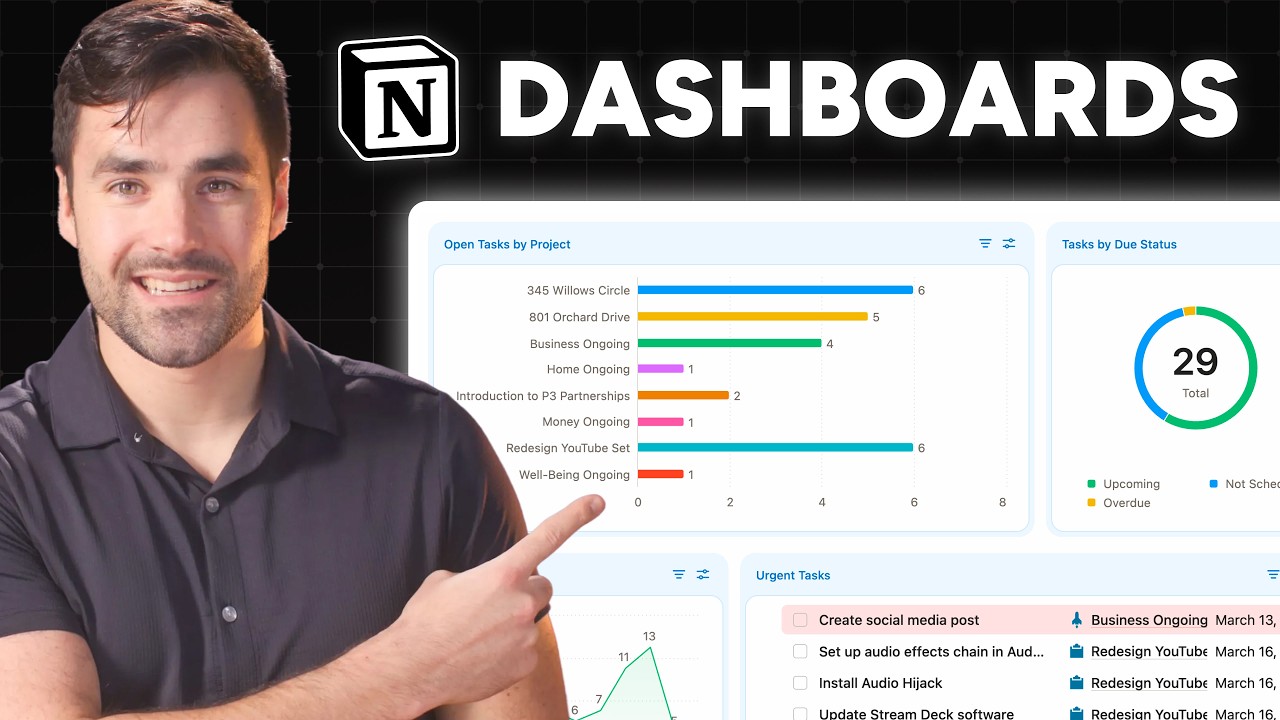
However, Dashboards require a Business or Enterprise plan to use. If a Notion template includes a Dashboard, it will not display any content in a workspace unless that workspace has upgrade to one of those paid plans. This is why Ultimate Brain (and Creator’s Companion) will not include any Dashboard views by default – I design these templates so that they don’t lock any functionality behind any of Notion’s paid plans. As much as I possibly can, I fight to make my templates 100% usable even if you’re on Notion’s free plan.
That said, you can easily add a Dashboard to Ultimate Brain. The process is simple:
- Click New View on any linked database block in the template
- Choose the Dashboard layout type (remember, your workspace must be on the Business or Enterprise plan)
- Click New View in the Dashboard to set up your first widget.
- Choose any data source in your template, then set up the view like any other linked database view
- Click the
+icon to the right or below your widget to add new widgets - Drag widgets around or resize them to customize the Dashboard to your liking
- When you’re done editing, hit Done in the top-right corner of the Dashboard view to switch it into View mode.
Here’s a quick, silent Loom video showing you exactly how to do this:
Click here to watch this video directly on Loom
Check out Notion’s official documentation to learn more about Dashboards.