


In this guide, I’ll show you the best ways you can quickly capture web pages, articles, and YouTube videos to Ultimate Brain from your iPhone or iPad.
This is a common question I get asked, since Notion does not offer any kind of web clipper or quick-capture app for mobile devices. Due to the complexity of mobile development, we still don’t offer a mobile version of Flylighter (our Notion web clipper for desktop browsers) either, though the browser extension does provide a fantastic way to capture research when you’re at a computer.
Fear not, though – you’ve got options! Here are a few methods you can use to capture content you find on your iPhone/iPad to Ultimate Brain.
I’ll be using the Notes database as the capture destination in all of these examples, which means the information you capture will go to a brand-new page in that database. You can, of course, choose any other database. Where possible, I’ll also note how you can add content to an existing page instead.
Under construction: This doc is currently a work-in-progress.
Copy link to headingiOS Share Sheet
The simplest way to capture web pages or content from other apps to Notion is via the share sheet. This option is also very robust for capturing web pages.
While it won’t let you set custom database properties, it does capture full article text, including images. It also captures the web page URL, automatically setting it on the database’s URL property.
If you’re just looking for a way to capture articles from the web to Ultimate Brain, this is all you need.
The share sheet shows up when you tap the Share icon:
[Screenshot of Share icon]
In Safari, you’ll find this at the bottom of the screen. Scroll up the current page if it’s currently hidden.
Other apps put the Share icon in various other places:
- Chrome places it in the browser bar, near the top right
- The YouTube app has its own custom Share icon underneath each video. You have to swipe through the preset icons, then tap the
•••(More) button to access the native share sheet.
The share sheet gives you a bunch of actions for sharing the content with other people or capturing it to an app. In the second row, you should see the Notion app icon. If you don’t, have a gander at Apple’s docs for adding it.
Once you tap the Notion icon, you’ll see a few options:
- Title: Auto-fills with the title of the page, but you can edit this
- Add As: Lets you add the content as a sub-page, or append it directly to the bottom of an existing page
- Workspace: Lets you switch to a different Notion workspace
For Ultimate Brain captures, I typically recommend choosing your Notes database in the Add As field. This will ensure that a new page is created with the title you’ve set. If you’re capturing a web page from Safari or another web browser, and the page has an article, the full article text will be captured as well. Pretty sweet!
You can also choose a regular page, rather than a database, in the Add As field. If you do, you’ll notice that Add As gains a dropdown, which gives you two options:
- Add Content To: Appends the content directly to the bottom of the page you’ve selected as new blocks
- As As Sub-Page In: Creates a sub-page within the page you’ve selected. You’ll find this sub-page at the bottom of the selected page, and all the content will be within that sub-page
Capturing to a page can be helpful when you’re collecting research, snippets, and notes all related to a single project, topic, or book. For example, if you’re taking notes on a book within the Books database, chosing that book’s page in can be useful if you want to capture links or content related to the book.
There are a few downsides to using the share sheet:
- There’s no option to automatically open up the new Notion page after capture
- Capturing from other apps (apart from web browsers) yields far less data. YouTube, for example, only captures the video URL.
iOS Shortcuts
If the share sheet isn’t enough for you, iOS has another trick up its sleeve: The Shortcuts app.
Shortcuts comes pre-installed on all iOS and macOS devices, and it lets you build step-by-step automations. It’s quite powerful, although I find that the UX leaves a lot to be desired when I’m building automations. Still, it can do a lot!
For example, Shortcuts will let you:
- Capture to Notion and automatically open the new Notion page
- Dictate a quick voice note, which can be transcribed and added as text to the captured page (alongside the full article)
- Fetch the title of a YouTube video while in the YouTube app
Unlike the share sheet, using Shortcuts to capture content to Notion requires a bit of setup. The trade-off is that you have much more flexibility. In fact, you can even use Shortcuts to trigger even more powerful automations in cloud tools like Zapier, Pipedream, or n8n. These platforms have integrations with thousands of other tools, including all the major AI platforms – so if you’re willing to go down that rabbithole, the world’s your oyster.
We’ll keep things simple in these guides, though.
Under construction: I’m actively working on the videos that will end up below, and will add them once they’re ready.
Copy link to headingNotion Shortcut Actions Overview
[Video going over the various actions]
Copy link to headingWeb Page + Voice Capture Shortcut
[Video going over the shortcut setup]
Copy link to headingYouTube App Capture Shortcut
[Video going over the shortcut setup]
Copy link to headingAdvanced Capture with Pipedream
[Video going over advanced Pipedream capture]
[Link to other Pipedream workflows here – Notion Voice Notes and Notion Voice Tasks]
Copy link to headingQuickly Access Common Pages
Automatic capture tools are nice, but it’s also helpful to simply give yourself a quick way to access your commonly-used pages in Ultimate Brain. That way, you can simply open the page and:
- Brain-dump a thought by typing
- Paste a URL or piece of text from the clipboard
- Record a voice memo with Notion’s AI Meeting Notes feature, or directly via Notion AI chat (both require the Notion Business plan – use my Notion Voice Notes automation for a free alternative)
The methods I’ll share below are useful for setting up quick access to core capture points, such as Ultimate Brain’s Quick Capture page. However, they can also be useful for building shortcuts to currently-active pages. For example, if you’re currently reading a book, you might create a shortcut to that book’s page in your Books database, so you can quickly add notes about it.
There are two ways I recommend setting up quick access to specific pages in Notion: Widgets and Shortcuts.
Copy link to headingWidgets
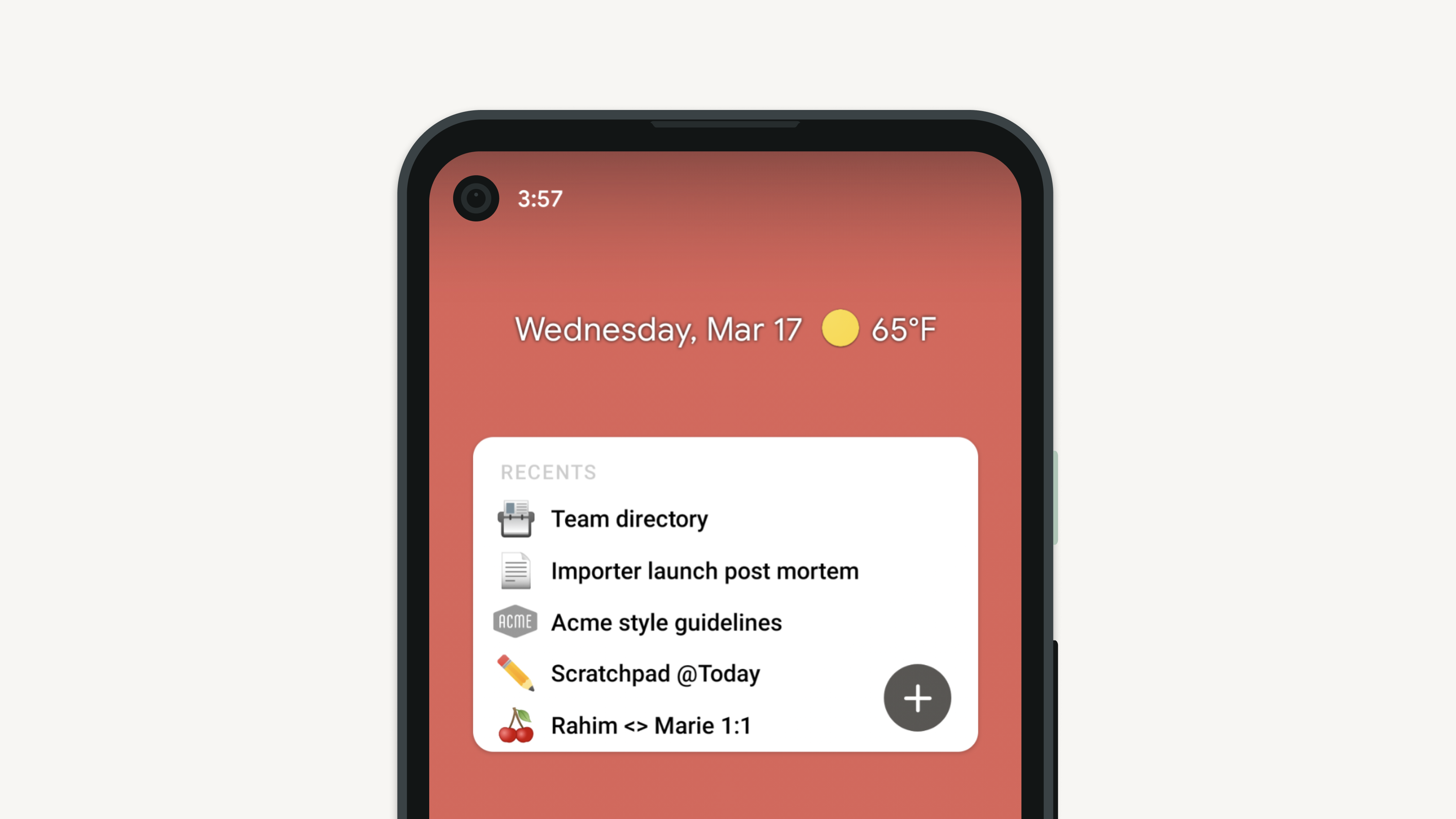
On both iOS and Android, the Notion app also adds a few widgets that you can add to your phone’s home screen, including:
- Single-page widget (links to a single, pre-set page)
- Favorites
- Recent Pages
- Notion AI tools (New Chat, Photo Upload, and Voice Recording)
If you’re on iOS, you can add these widgets to any page on your home screen. You can also add them to the Today View, which is a special page exclusively for widgets that you can access by swiping right from your home screen.
Check out the official Apple docs on widgets for more details:
You can also check out Notion’s official documentation on creating these widgets:
Link Shortcuts
The Shortcuts app we covered above has another fun trick: You can add specific shortcuts you’ve built directly to your home screen.
This means you can create a shortcut that simply opens a specific Notion page, and then add that page to your home screen. Notion’s native widgets for single pages are huge. They take up the same amount of space as four individual app icons. Using a shortcut gives you the exact same result, but only takes up the space of a single icon – meaning you can fit 4x the links in the same space.
Granted, Notion’s own Favorites widget has the same space efficiency. However, I find that my Favorites shift over time as I add temporarily-important pages to the Favorites section, and I found myself wanting a more stable set of page links on my phone. Building shortcuts for this purpose solves that problem.
[Video: Process of creating a link shortcut]
Copy link to headingNotion AI Quick Capture
If you’re already subscribed to Notion’s Business or Enterprise plan, you have access to Notion AI features.
While Notion AI isn’t the right tool to reach for if you just need to capture a web page, it can be useful for some other use cases when you’re on the go. The Notion AI widget can be particularly useful for quick capture, as it gives you buttons for capturing both photos and voice notes with a single tap.
Notion AI can be helpful if you need to do something more complex than simply capturing a web page to a database. In the video below, I show a good example:
[Video: Capturing a book highlight via photo + Notion AI]