


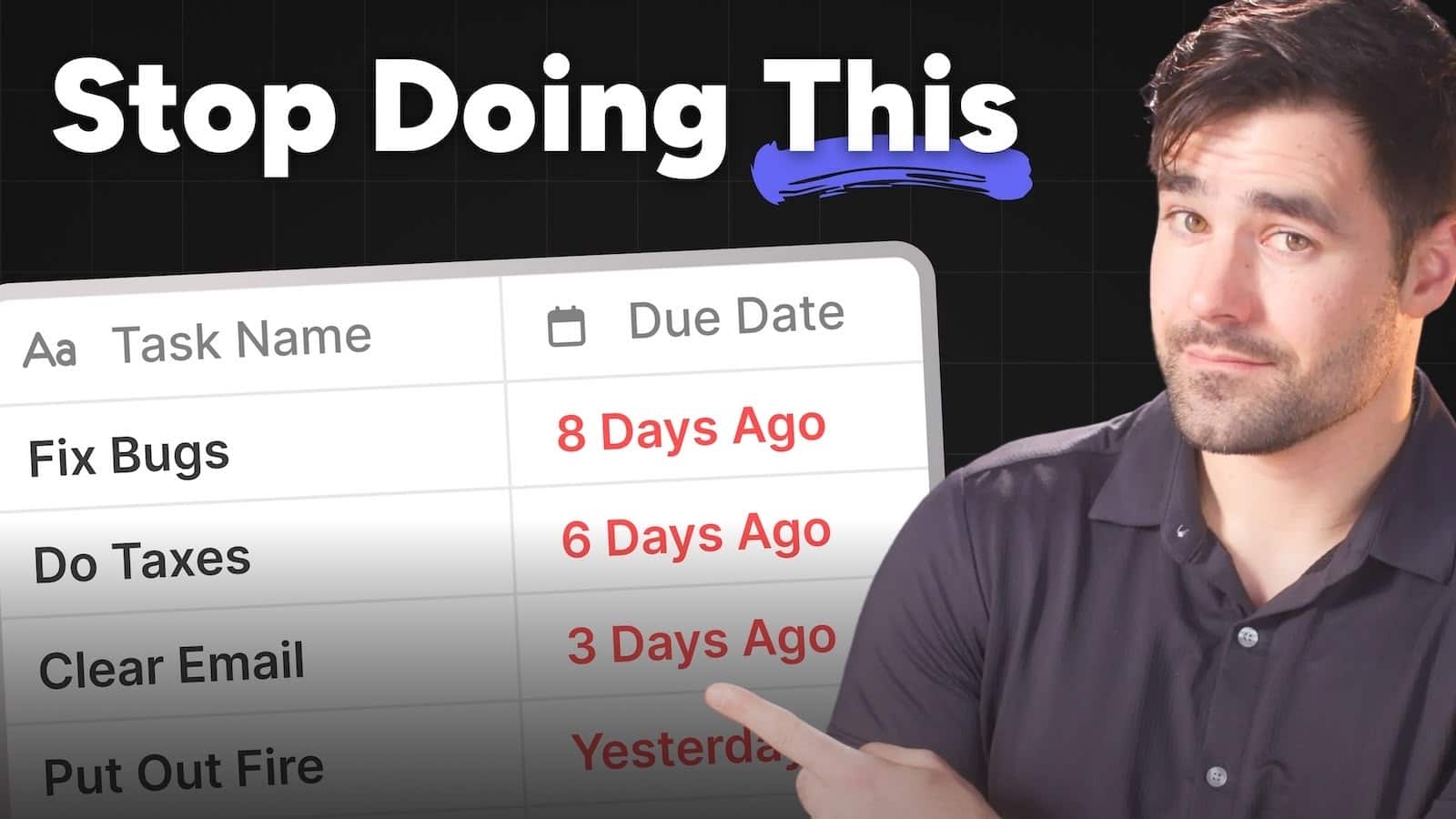
I’m convinced that 95% of people plan their day in the wrong way. If you often find yourself looking at your list of tasks without knowing what to do next, you’re among them.
But it’s not your fault… it’s the fault of your tools. And luckily, fixing those tools is extremly simple. Let me show you how.
First, let’s look at the problem.
Most people use task managers of one flavor or another. Some use traditional apps like Todoist, while others roll their own systems in Notion.
Folks in both groups tend to lean on due dates. This is by design; the vast majority of task management systems put due dates front-and-center, encouraging you to add one to each task. In a perfect world, this allows you to plan your day by looking at a classic “Due Today” list.
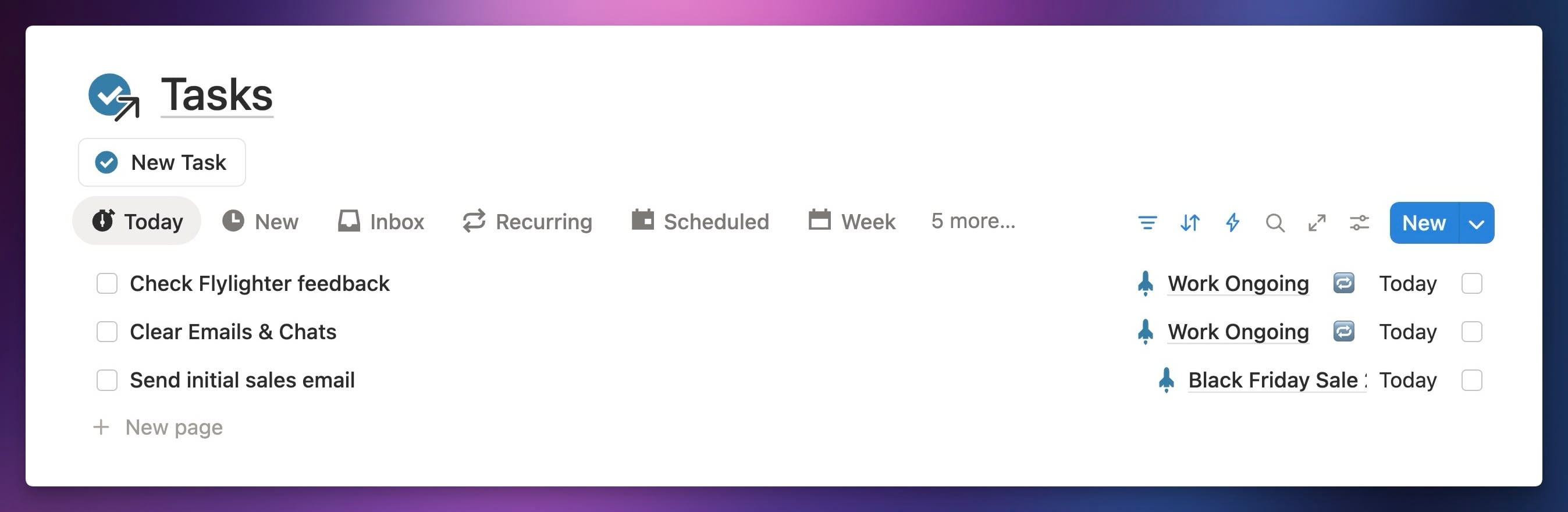
Here’s the problem: I don’t know about you, but this setup has quickly become useless for me every time I’ve tried it. After a while, it’s never as clean – and clear – as the screenshot above.
Why? Most due dates are fake.
While some tasks truly must be completed by a specific date, others just need to be completed Soon™. And if you’re anything like me, you ambitiously add tasks to your system that don’t actually need to be completed by any date at all… but, of course, you feel they need to be done Soon™.
Some examples from my own task manager:
- ✅ Add a dark mode to my website
- ▢ Clean out my air conditioning unit (a YouTuber said I should do it)
- ▢ Set up AWS billing notifications
- ▢ Schedule a dentist appointment
Each one of these tasks, if accomplished, would improve my life or business in some way. But no one is forcing me to do any of them by a certain date, and as you can see, I’ve only finished one of them – the one that I found intrinsically interesting enough to start on a weekend.
Now, a younger me would have given each of these a due date, hoping that setting the date would create pressure and ensure the task got done Soon™.
In most cases, that didn’t work.
All it did, over time, was litter my task manager with “overdue” tasks that didn’t matter. Each time I’d look at my “Due Today” view, aiming to build a clear plan for what I’d work on that day, I’d be overwhelmed with all these overdue tasks.
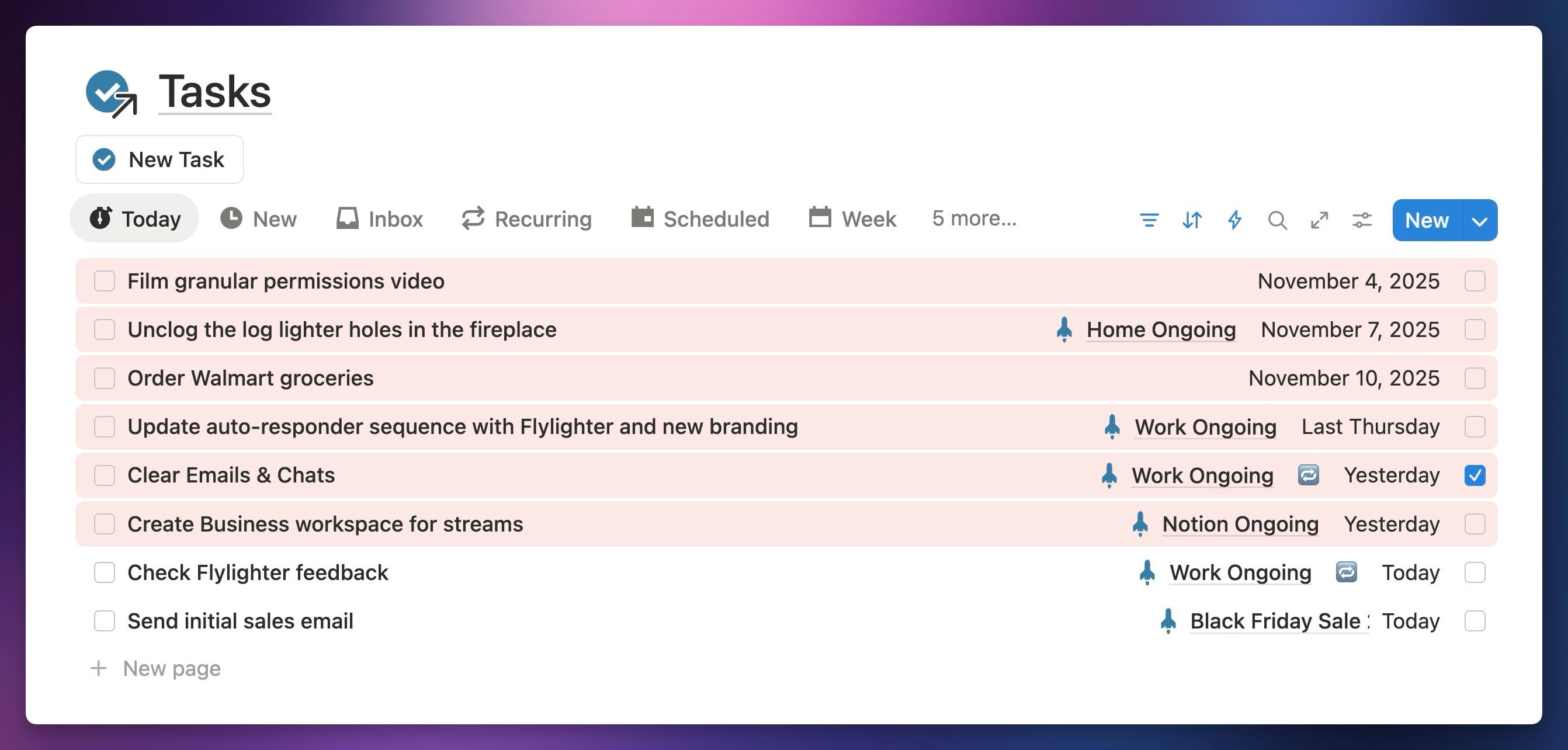
Sounding familiar? If so, I promise there’s a better way. Here it is:
- Stop setting due dates for tasks that don’t have true deadlines.
- Create a clean list of tasks you’ll attempt to complete each day.
- Clear that list at the end of the day.
This is how I’ve been working for the past year, and the change has worked wonders. Here’s a look at a typical day’s list of tasks:
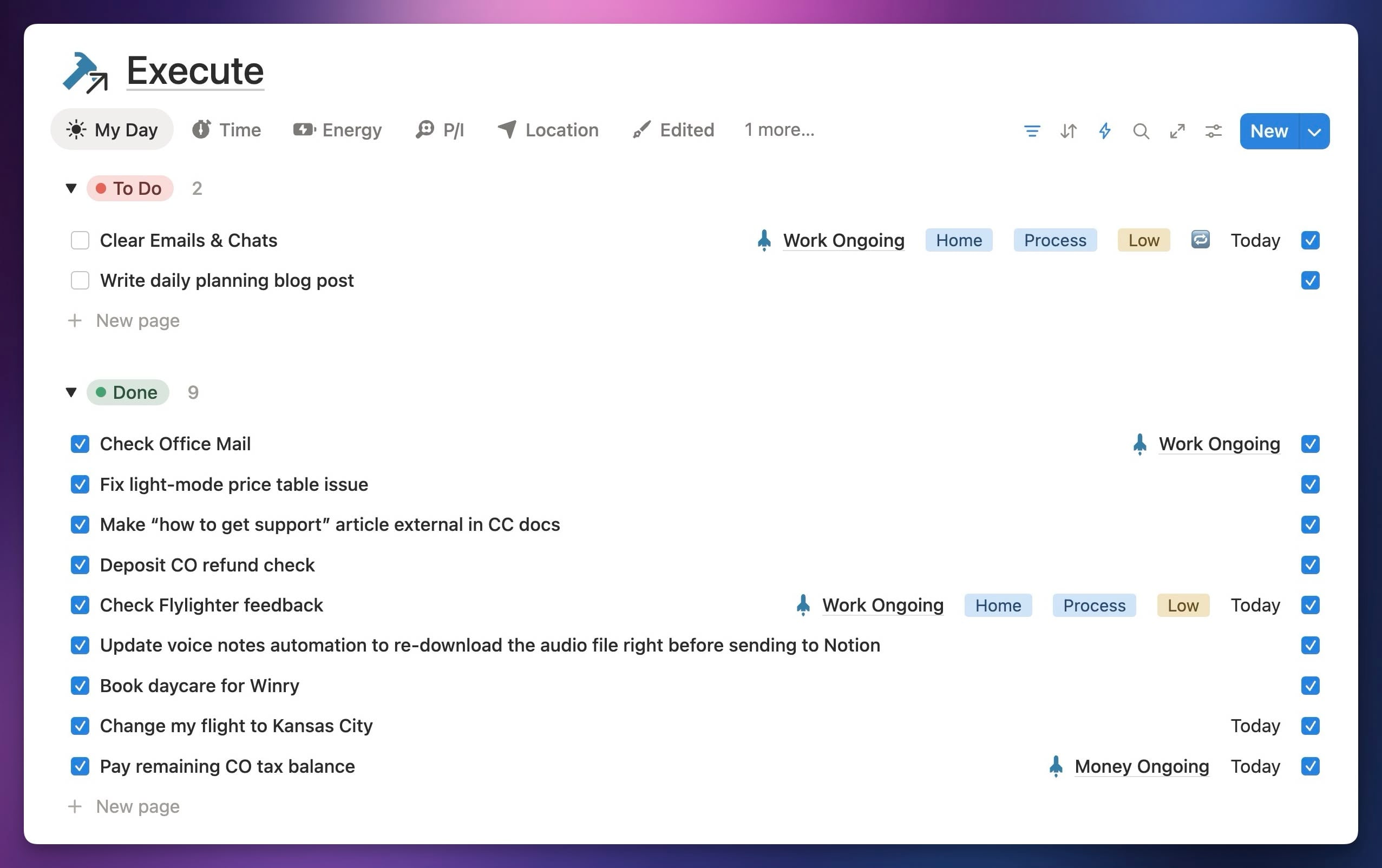
Once I’ve created this list – which I’ll show you how to do in a moment – it’s the only list I look at while I’m working throughout the day.
Crucially, I still have a traditional task management system. I need to manage a lot in my life; I’ve got a team to manage, videos to produce, a website to improve, a house to maintain, and more. I geniunely benefit from setting due dates (when they’re needed) and grouping tasks into projects (you can see that some of the tasks in my list have due dates, because they’re truly time-sensitive).
But when it comes to planning out my work for the day, I don’t want to see that whole system… and I definitely don’t want to see a bunch of tasks with arbitrary due dates.
Instead, I want to deliberately select the tasks I plan to accomplish, then see nothing else for the rest of the day.
Here’s how I do it.
Copy link to headingThe “My Day” Dashboard
When I sit down to work each day, the first thing I do is head to a page I’ve built in Notion called My Day.
This is a dashboard I designed to be a hyper-opinionated daily planner. It has three main sections:
- Plan – This shows my traditional task manager views, like Due Today or Tasks By Project. Here, each task has a special checkbox called My Day that I can check.
- Execute – The heart of the system. This view only shows tasks that have the My Day checkbox checked. Nothing else!
- Wrap Up – This set of views is meant for the end of the day. If I have tasks at the end of the day I haven’t finished, I use this section to update any needed details.
These three sections enable me to create that clean list at the start of each day, and then to clear it at the end of the day.
Clearing the list is crucial; if I didn’t do it, the Execute view would become cluttered with “overdue” tasks!
The entire point of the system is to force me to start from a blank slate and deliberately choose what I will do each day.
Here’s a bit more detail on each of these sections.
Copy link to headingPlan
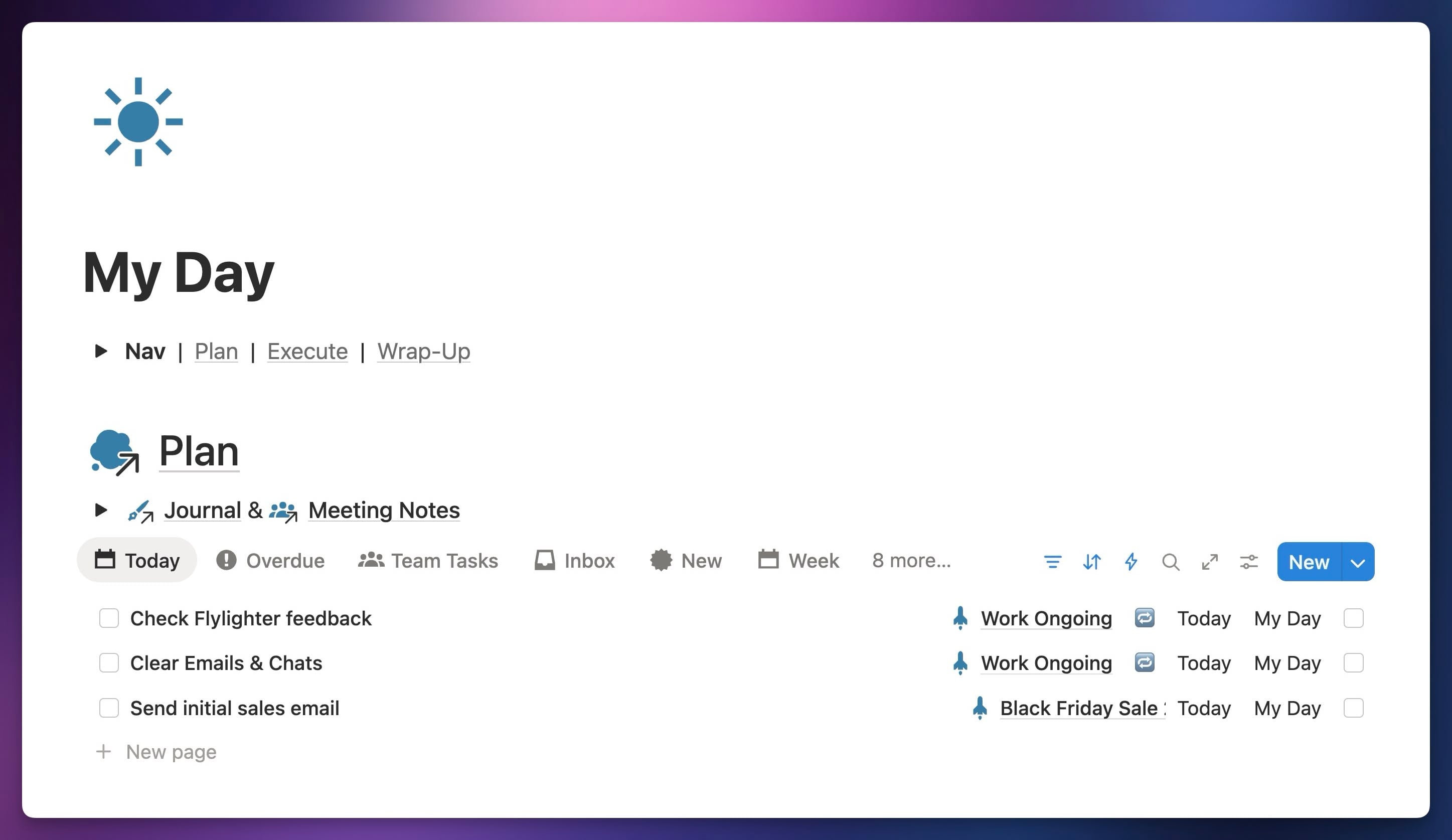
The Plan section is just my regular task manager. Literally. It’s the linked database block from my regular Task Manager page, copied and pasted into the My Day page.
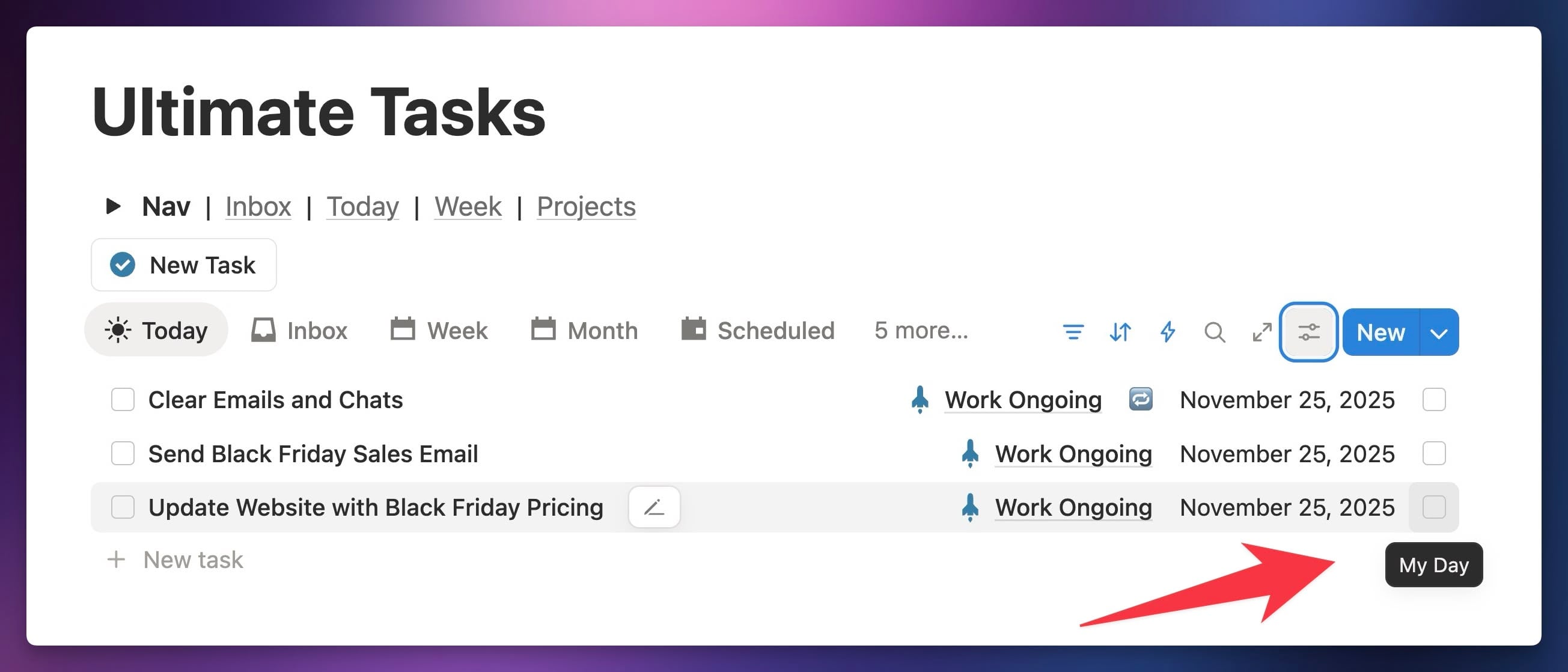
Under the hood, I’ve added a Checkbox property to my Tasks database called My Day. In this set of views, I’ve made that checkbox visible on the right side of each task.
This lets me start the day by looking through the views in the Plan section, checking My Day on any tasks I intend to complete. I keep the Today view front-and-center, since it shows tasks that are actually due today… you know, tasks with real deadlines!
However, I can also look through the other views to see tasks within projects, tasks in the Inbox, etc. This set of views gives me a bird’s eye view of everything I need to do, and everything I might like to do.
Copy link to headingExecute
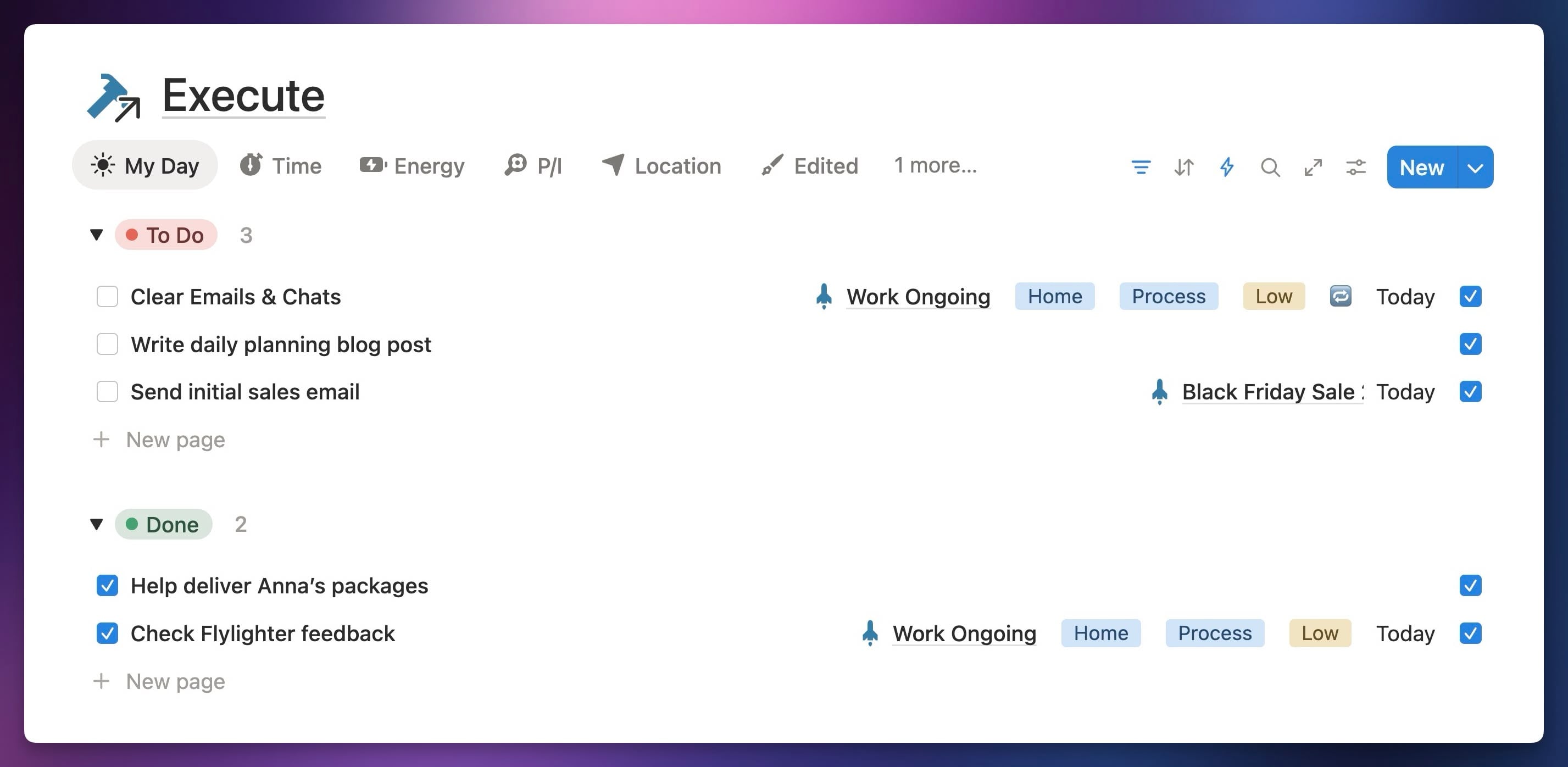
The Execute section also contains a linked database view connected to the Tasks database. However, it’s filtered to only show tasks that have the My Day checkbox checked.
Essentially, I use the Plan section to populate the Execute section, forming a tight, focused plan for the day.
I’ll note that this isn’t much different from looking over any traditional task manager and simply writing down the tasks you’ll do today in a new Notion page, or on a sticky note, or on your arm. The key is simply to create a separate list of deliberately-chosen tasks. Doing it this way in Notion just makes the process seamless and fast.
In this particular view, I don’t apply any Sort criteria at all. This lets me drag the tasks around, creating a rough order of execution. I find this really helpful, as it creates even more clarity on what I should do right now.
I do Group the view by the Status property, which sends completed tasks down into their own section.
Finally, I’ll note that I’ve added a couple of upgrades that I occasionally find useful: Context Tags and Time Tracking. I’ve covered these in their own sections below. While they’re helpful, they add complexity, so I don’t want them to discourage you from trying out the heart of the system that I’ve described here.
Copy link to headingWrap-Up
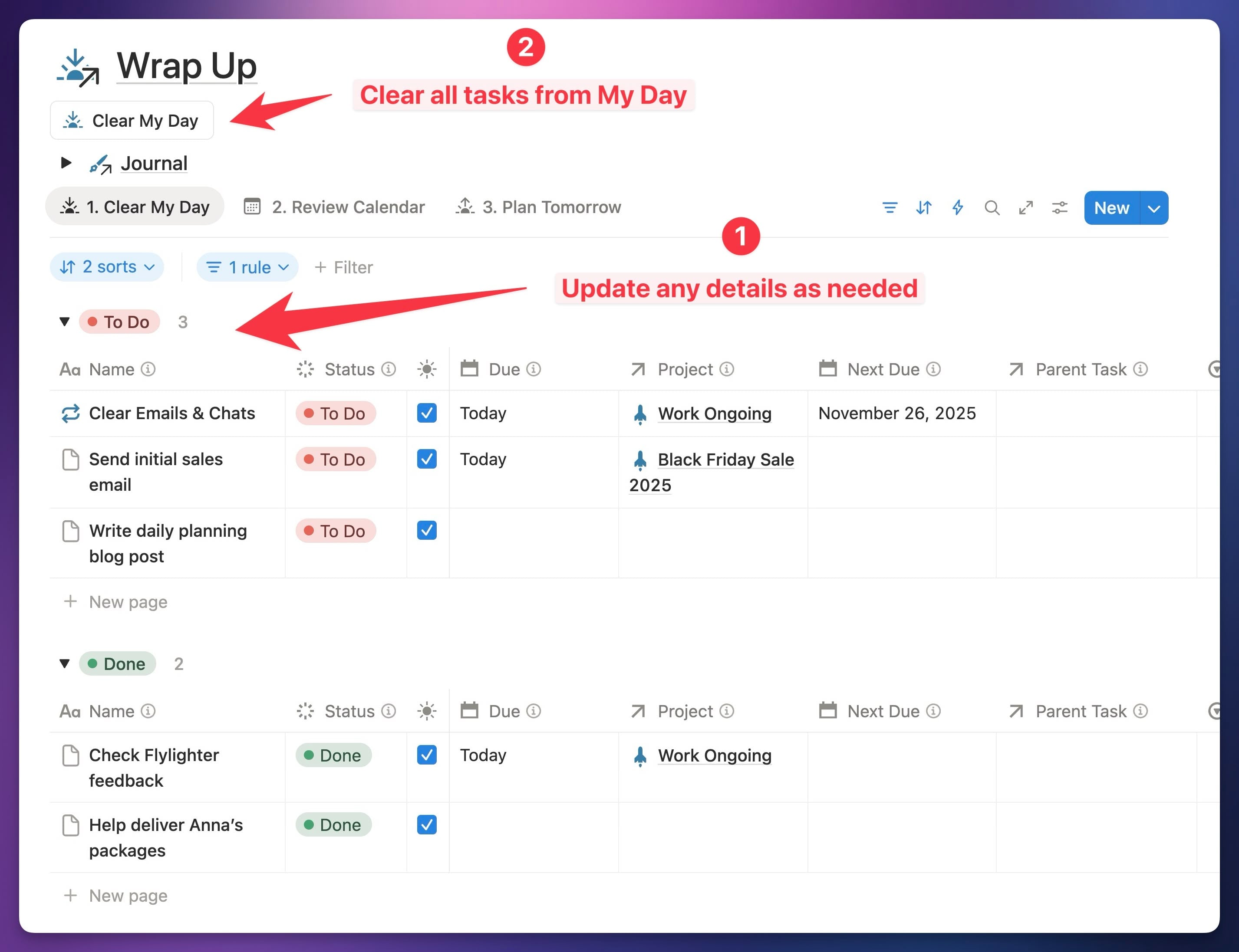
The Wrap-Up section has two parts.
First, there’s a Button block called Clear My Day. When I click this, it un-checkes the My Day checkbox on any task where it’s currently checked.
This is important! So, so important!
The entire point of the Execute section is that it’s built from scratch each day. That’s sacred. Execute must be a list of deliberately-chosen tasks that you intend to complete today.
Therefore, any task that you don’t complete today must have its My Day checkbox un-checked. You can check it again tomorrow if you intend to work on the task again.
However, this sacred rule brings up some anxiety:
“If I remove this task from Execute, I might lose it in my system and forget I was working on it!”
This is exactly why Wrap-Up has a few additional views of the Tasks database:
- Clear My Day – Shows tasks that still have My Day checked. Before clicking Clear My Day, I can use this view to update task details as needed (e.g. adding a task to a Project).
- Review Calendar – A Calendar view. This ensures I see tasks that may actually have a deadline.
- Plan Tomorrow – Shows unfinished tasks, sorted to show the most recently-edited at the top.
Plan Tomorrow’s sorting ensures that any unfinished task that has its My Day box un-checked will show up near the top. This means there’s no chance of losing the task in your system. The next time you’re planning your day, you’ll see it right there.
You can even add it right back to Execute at the end of the day, pre-emptively planning the next day. A lot of folks like the plan the night before.
Again, the key is to clear the list before you fill it up again, making sure that you’re always starting from a blank slate.
Copy link to headingWhy “My Day” Planning Works So Well
It’s all about clarity of purpose.
When you’re looking at a big list of tasks that you might do today, there’s no real pressure to start any of them now.
When a “Due Today” view in a classic task manager gets filled up with “overdue” tasks that aren’t actually due at any point, the entire view is compromised.
But when you’re looking at a small, deliberately-selected list of tasks that you clearly intend to finish today, you gain the clarity you need. This works even better when you drag those tasks around to create a truly deliberate order. It’s all about creating an obvious answer to the question:
“What do I work on next?”
You can have the fanciest system in the world, with all the quick-capture bells and AI whistles, but work happens in small, sequential steps. If you can’t get yourself to take the next, decisive step, you won’t accomplish anything.
Copy link to headingWhen Should You Use Due Dates?
While My Day-style planning is effective, you should still use due dates in your system. You just want to limit them to tasks where they’re useful.
First, if a task truly due have a deadline, you should set that deadline as the due date. This is the primary purpose of a due date, after all. It’s supposed to make sure you know when a task truly needs to be done.
Now, what actually constitutes a deadline isn’t always clear. If you’re working for someone else, or you’re a student, your deadlines are pretty clear-cut. Someone else is expecting you to do a thing by a certain date, and you’re late, you’ll be in trouble.
When you’re running your own business, or pursuing your own goals, deadlines might be fuzzier. You’ve still got hard ones, like paying your taxes, but most other tasks aren’t being overseen by another person.
For these, you simply need to get clear on your priorities. You might want to finish several projects, but which is the most important?
In the screenshot above, “Send Initial Sales Email” has a due date because we’ve decided that boosting revenue with a Black Friday sale is high-priority. Therefore, tasks related to that project have hard due dates.
In addition to task with deadlines, some recurring tasks benefit from having due dates, since they function much like recurring events.
I’m not convinced that recurring tasks always need deadlines, though, and in a future video I’ll be exploring how we might improve this. I think many recurring tasks would benefit from a “Days Since Last Completed” approach, and Notion would let us easily build views that surface recurring tasks that haven’t been completed within the desired number of days.
Copy link to headingHow to Build Your Own “My Day” System

Here’s how to build a My Day system for yourself.
First, if you would like me to do this entirely for you, get my Ultimate Brain system for Notion.
Want to turn Notion into a complete productivity system? Ultimate Brain includes all the features from Ultimate Tasks - and combines them with notes, goals, and advanced project management features.
Get $30 off with code SPRING30!
Ultimate Brain includes the My Day dashboard out of the box, tightly integrated into the best overall task manager that you’ll find for Notion. That task manager stands alongside an advanced note-taking system, project manager, CRM, and much more. Ultimate Brain is the way to organize and run your entire life in Notion.
Alternatively, you can build this yourself. Here’s how.
In this section, I’ll focus on a basic implementation. We’ll upgrade an existing task manager with the two most important views from those I showed above:
- A “My Day” view that mirrors the Execute section
- A “Recent” view that shows tasks you’ve recently edited
If you can build these using my guidance here, you can also use the video above to built the other sections if you like.
First, you’ll need some kind of task manager in Notion. If you’d like, you can follow my 90-minute task manager masterclass to build one from scratch:
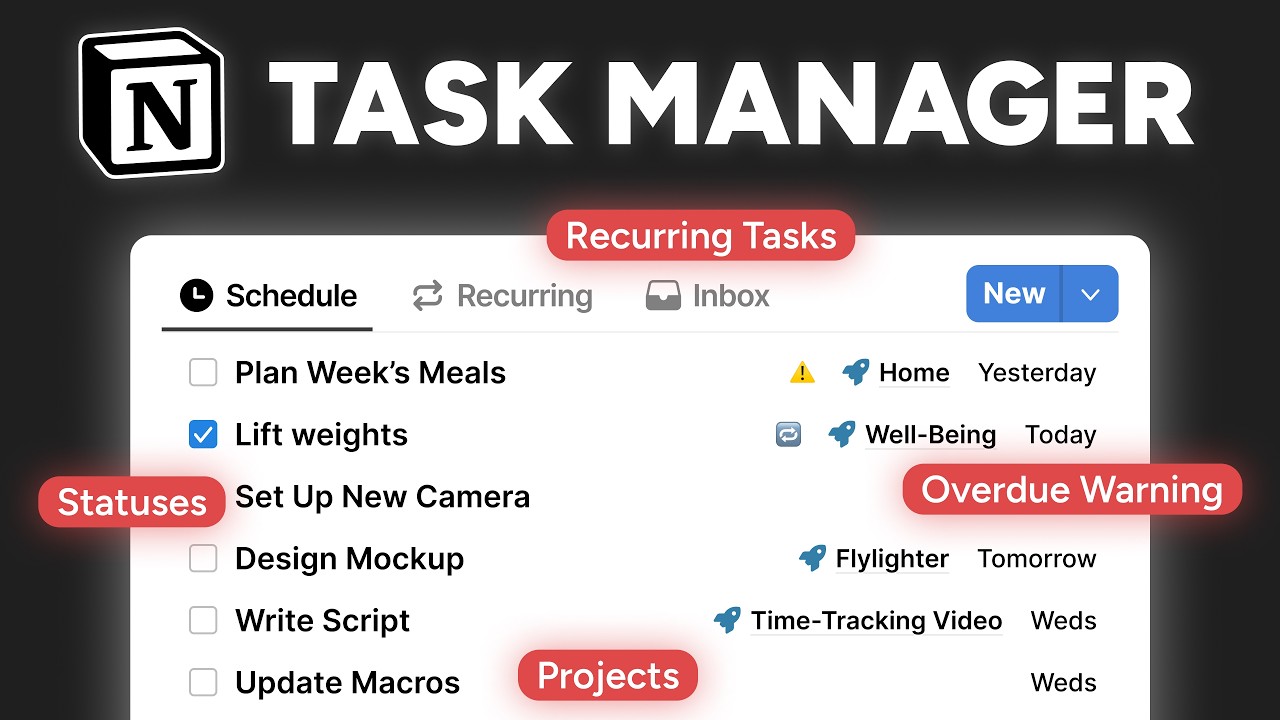
You can also grab a free copy of my basic task manager template here – the same task manager I build in the video – and make modifications I desribe below to it.
I’ll show the changes being made to my basic task manager, but the concepts will apply to any database-driven task manager you may already be using in Notion.
Once you have your Notion task manager, find your tasks database, unlock it if you need, and add a new Checkbox property called My Day.
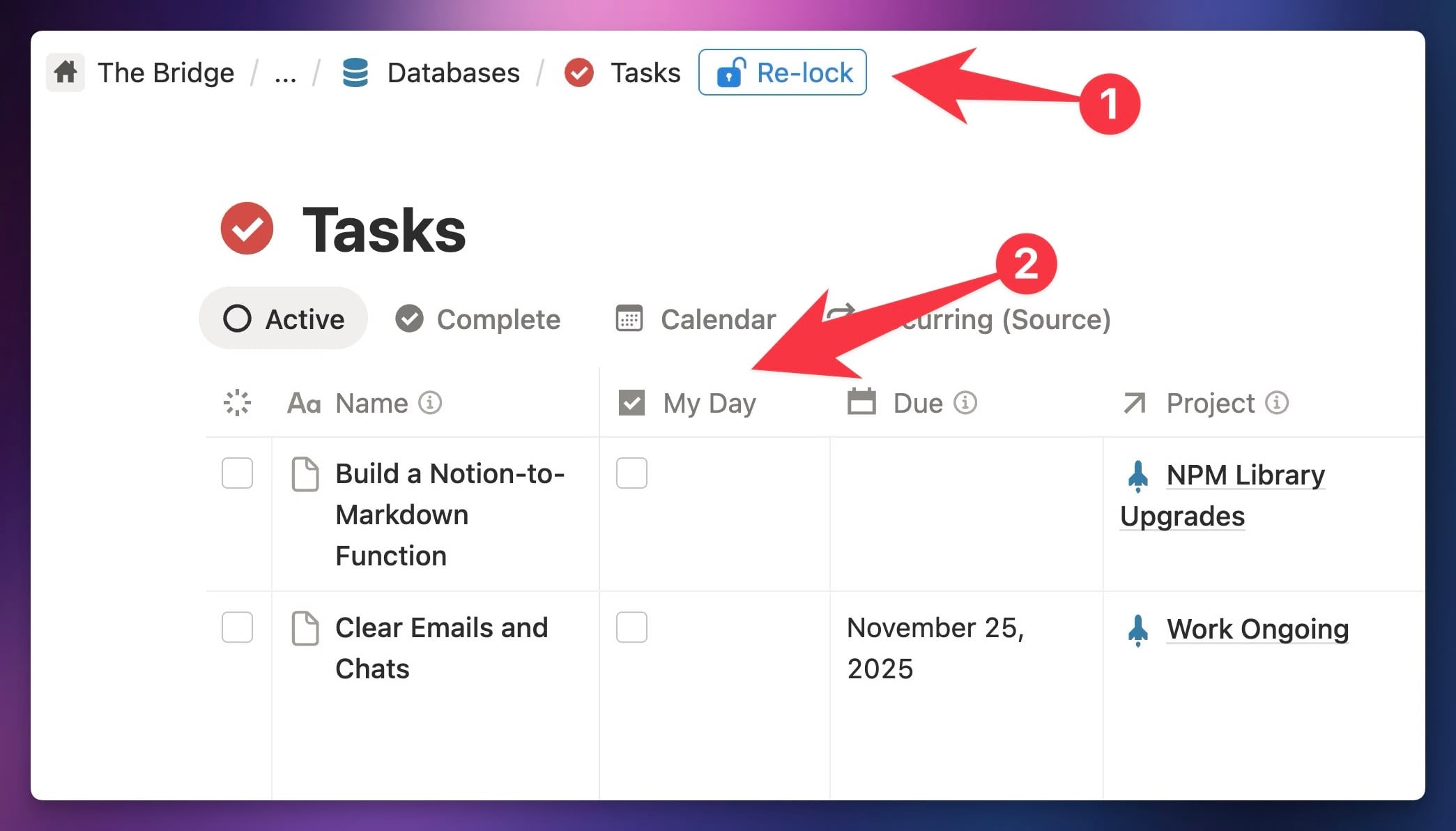
I recommend making it easy to check this box. I’ve done this by showing the My Day checkbox property in all the normal Task Manager views within my Plan section.
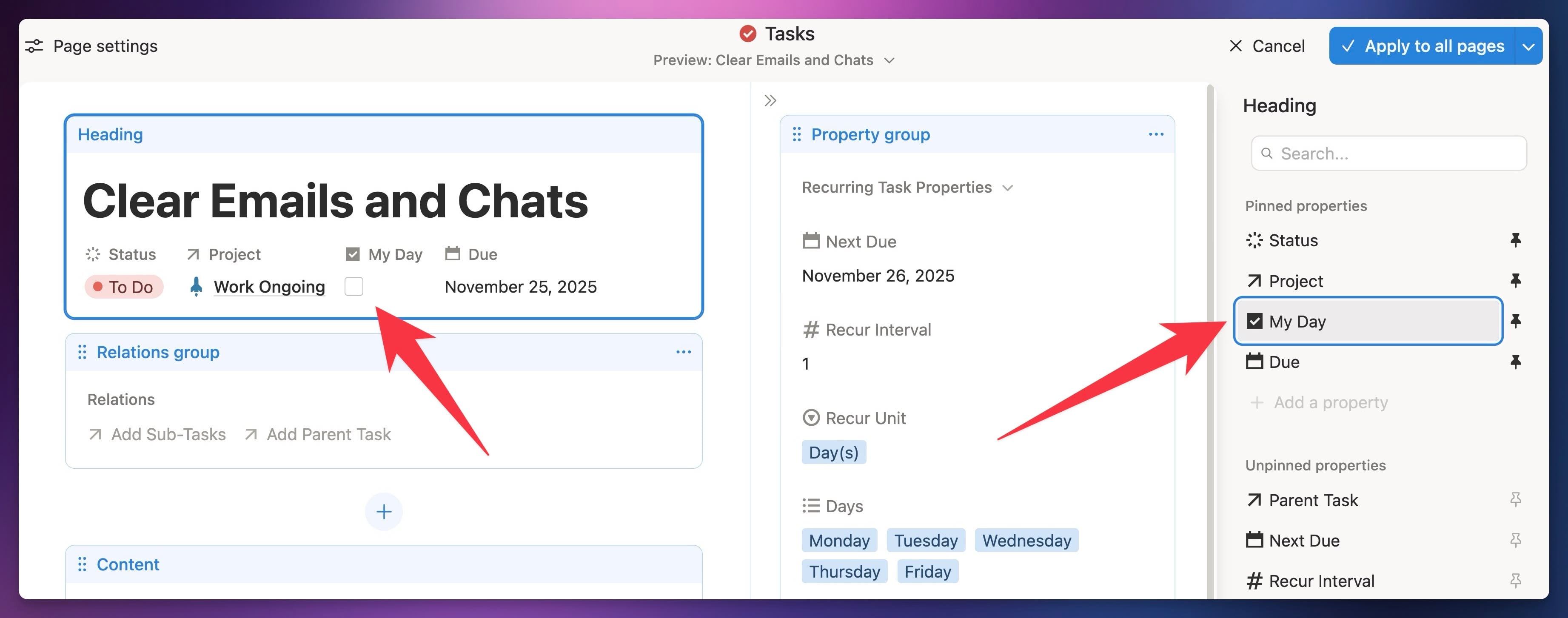
I’ve also pinned the property at the top of pages in my Tasks data source. You can learn how to do this in my Notion Layouts video, or see me do it in this tutorial’s video above.
Next, create a new view in your task manager called My Day. If you want it to look roughly like mine, give it these settings:
- Data Source: Your tasks data source (learn about data sources here)
- Layout: List
- Properties: Status, Task, [anything else you want], My Day (in that order)
- Filter: My Day is not Checked
- Sorts: None
- Grouping: Status, don’t hide empty groups
Naturally, you can make any tweaks you like. The only required bit is the filter, which ensures the view only shows tasks with My Day checked.
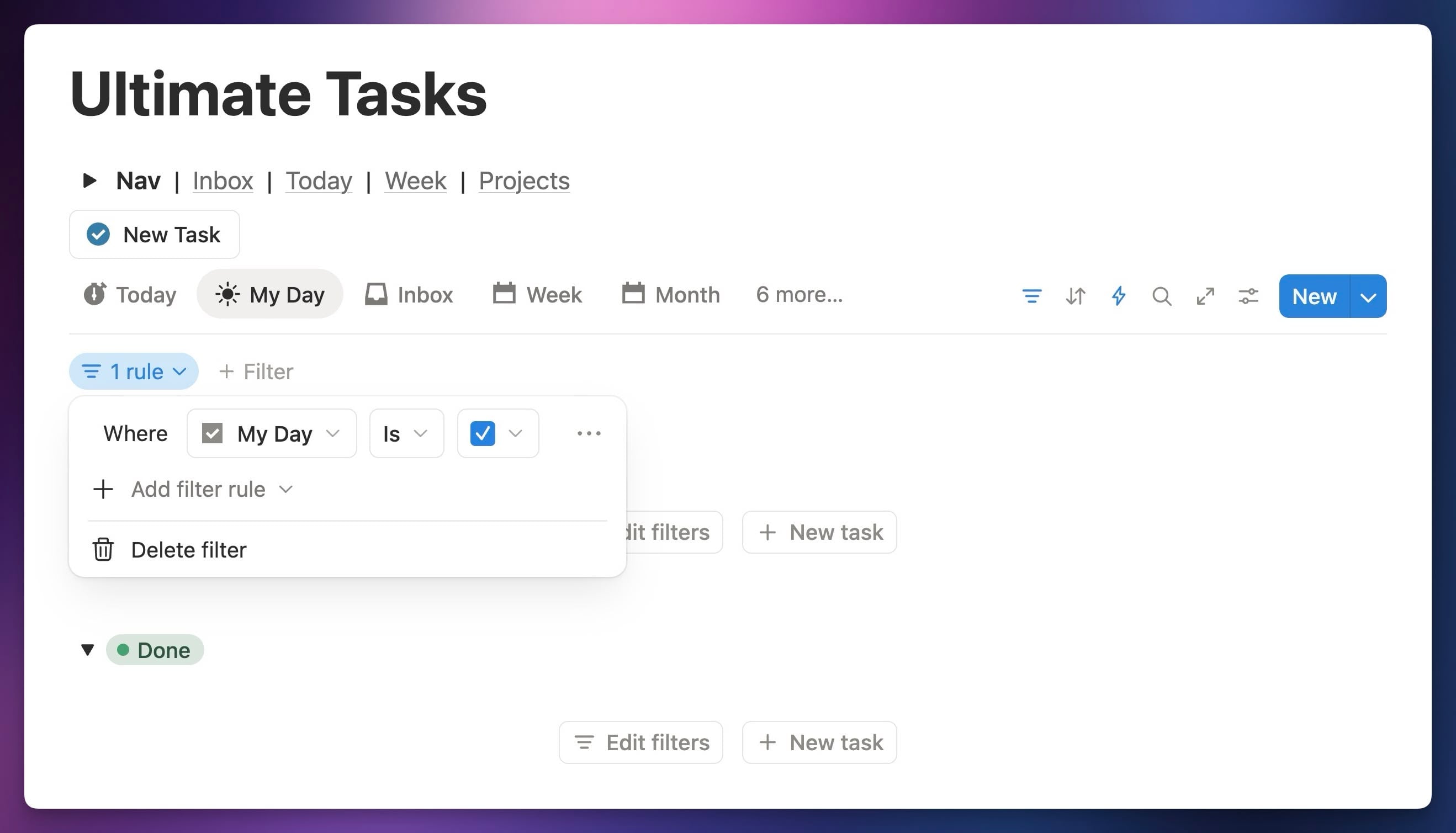
Finally, you may want to create a second view called Recent that simply sorts unfinished tasks by a Last Edited Time property in descending order. This will show tasks that have been recently modified at the top – which is useful, as checking/unchecking My Day counts as a modification.
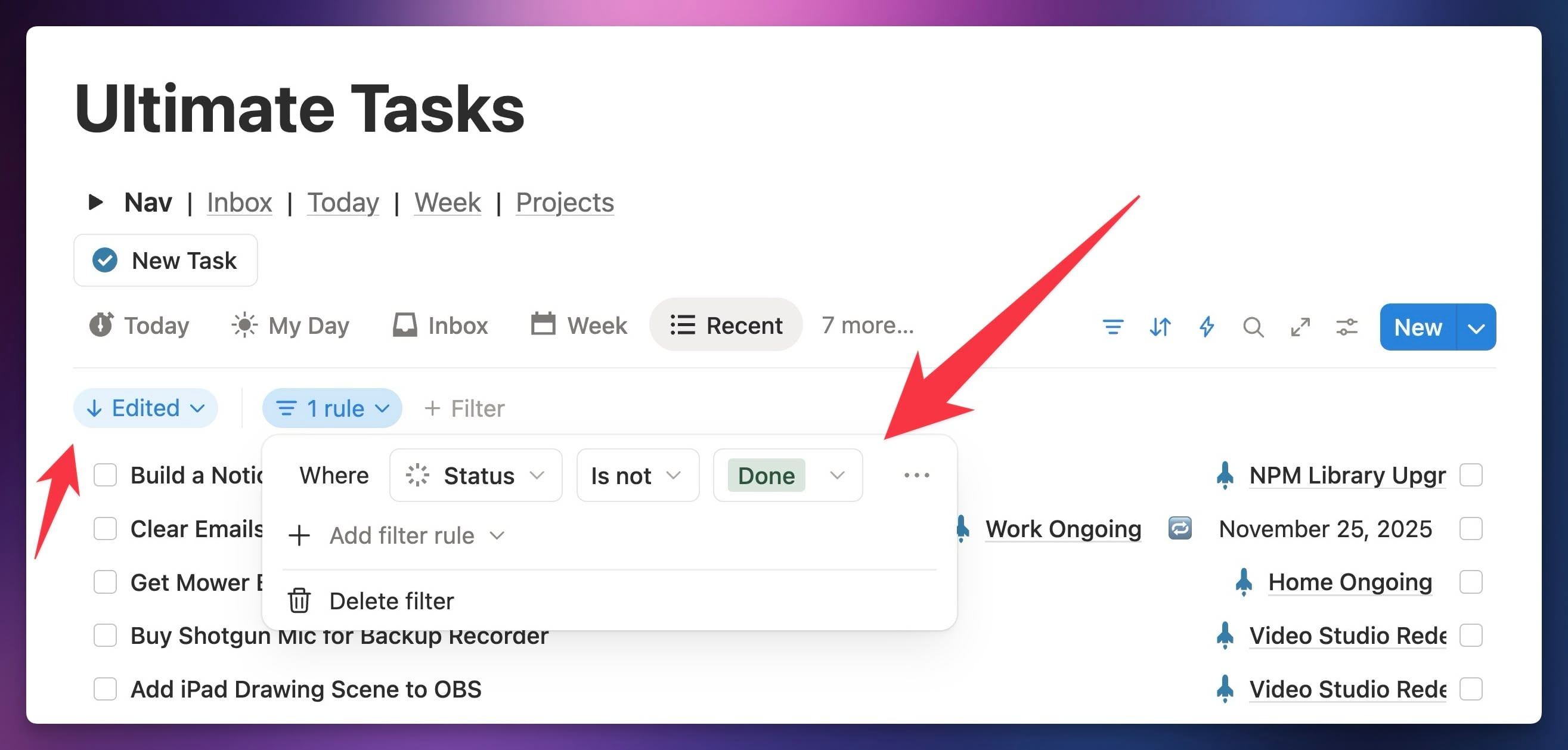
Building this view gives you an easy place to reference unfinished tasks that have My Day unchecked at the end of the day. As I’ve said before, it’s crucial to remove them from your My Day list, so that it starts fresh each day.
To make this easier to do, you can create a Button block (/button anywhere on a page) can call it Clear My Day.
This Button should contain a single Edit Pages In… action, which filters your tasks data source for pages where My Day is checked, and simply sets that My Day property to unchecked. This will clear your list automatically.
Copy link to headingImprovement #1: Context Tags
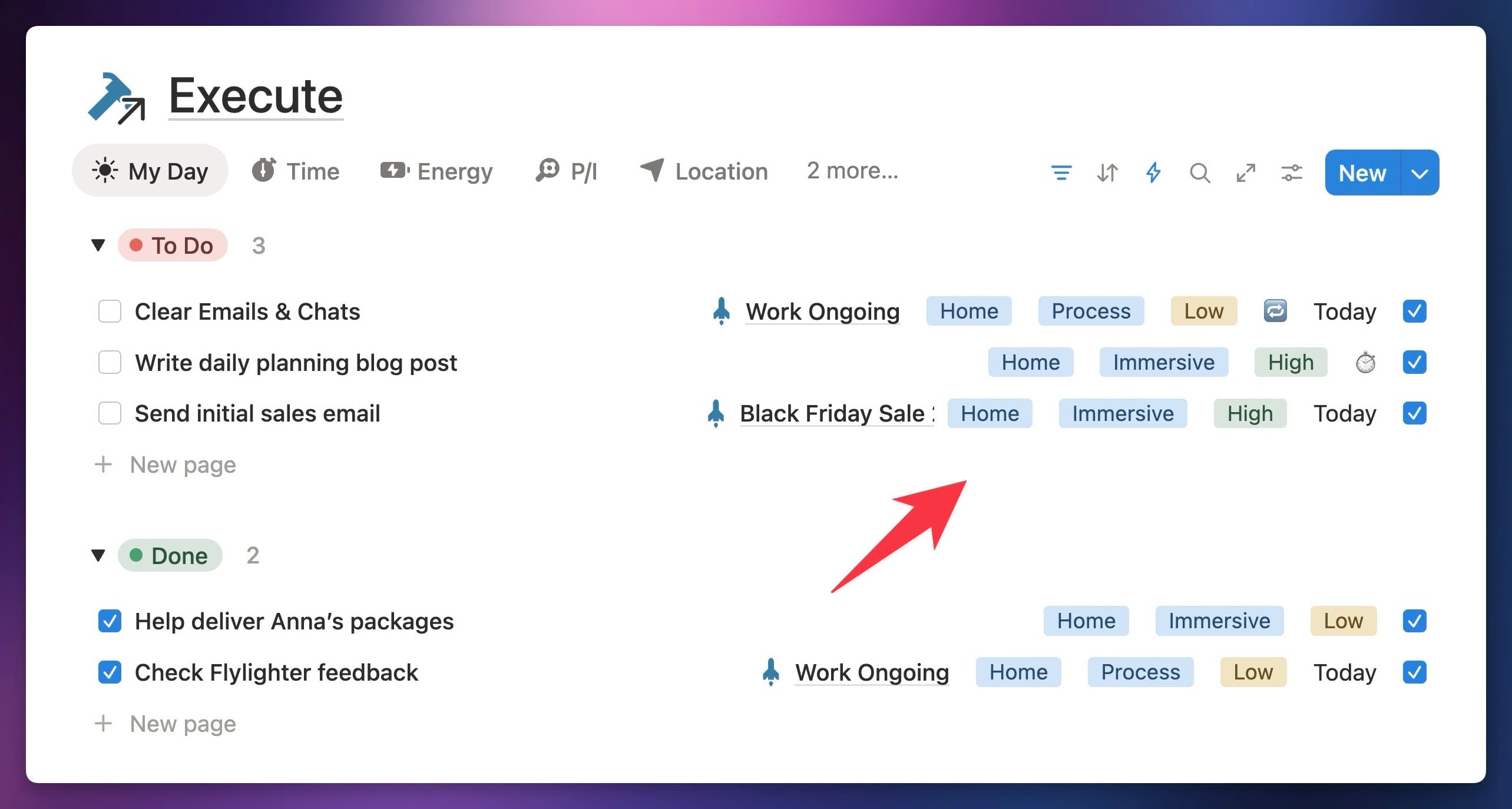
I find that dragging tasks around in my Execute view to create a plan of attack is usually enough to get me moving. However, after getting some great feedback from folks in our customer support community (anyone who buys Ultimate Brain gets access), I added a couple of additional features.
The first is a set of three Select properties, which collectively allow me to add Context Tags to the tasks I’ve added to my daily plan. By adding these tags, it becomes easier to batch tasks that happen in a similar context – e.g. Errands, or Low-Energy tasks. It can also help you create a smart task order, as we’ll see in a second.
These include:
- Location – Home, Errand, Office, etc.
- Energy – Low, High (mental energy and focus required)
- P/I – Stands for “Process/Immersive”. Perhaps the most important, so I’ll explain it below.
Location is great for batching tasks. Energy is also great for batching, and it might also help you to build a smarter task order. If you know that you have more mental energy in the mornings, you might choose to tackle your most difficult task first-thing.
But P/I – Process/Immersive – is the most important property of the three, especially if you work with other people who either need information from you to do their own work, or who might be blocked while waiting for you to finish something.
The Process/Immersive concept comes from a book called Work Clean: The Life-Changing Power of Mise-en-Place to Organize Your Life, Work, and Mind. This book explores the concept of “mise-en-place”, a philosophy that is ubiquitous in the world of chefs and professional cooking.
Literally, “mise-en-place” translates from French as “putting in place”, but in practice it’s a whole ethos that deals with planning, organization, and working efficiently.
I recommend Anthony Bourdain’s classic Kitchen Confidential if you want a more visceral, and entertaining, explanation of the concept. Work Clean is a good book, but it’s also a typical business/self-help book, which is to say that it takes 300 pages to explain a handful of good ideas. It’s also not narrated by Bourdain.
The best idea I took from Work Clean is that there are two types of tasks: Process tasks and Immersive tasks.
- Process tasks need you to get the ball rolling, but then they progess without you.
- Immersive tasks need your full focus. They don’t carry on without you.
Some examples of Process tasks:
- Putting a pan on the stove to heat it up
- Starting a load of laundry
- Responding to a Slack message from your COO asking for details on that big sale you wanted to run
- Starting up the big laser above that MI6 agent you caught earlier
Some examples of Immersive tasks:
- Chopping an onion
- Mowing the lawn
- Filming a YouTube video
- Engaging in hand-to-hand combat with that MI6 agent who miraculously escaped the laser
The way that you order Process and Immersive tasks matters a lot, because Process tasks are blocked until you put in that little bit of effort to get them started. Once you do, things start happening without you.
Imagine you’re a high-powered CEO. You wake up, make your daily plan, then think, “Hey, that other productivity YouTuber told me to Eat The Frog. I’d better do that difficult, 3-hour task I’ve been dreading.”
So you get to work, and for three hours your wet laundry sits in the washer, and your COO is twiddling his thumbs because he can’t launch that big sale until you give him the login to the Stripe dashboard.
Your company misses out on 3 hours of sales, and you don’t make enough money to pay off the mob loan you took out after your last unfortunate Vegas trip where you learned card counting is harder than movies make it look.
Next thing you know, your toes are feeling the cold, viscious, unmistakable texture of wet concrete.
If only you’d remembered to do your Process tasks first, all of this could have been avoided. Or, at the very least, you’d have some clean socks in between your feet and that concrete.
In my opinion, taking a few seconds to label tasks as Process or Immersive can be extremely helpful. I often wake up very excited to dive straight into deep work, so it’s good to have an explicit reminder that there are a few Process tasks I should kick off first.
Copy link to headingImprovement #2: Time Tracking
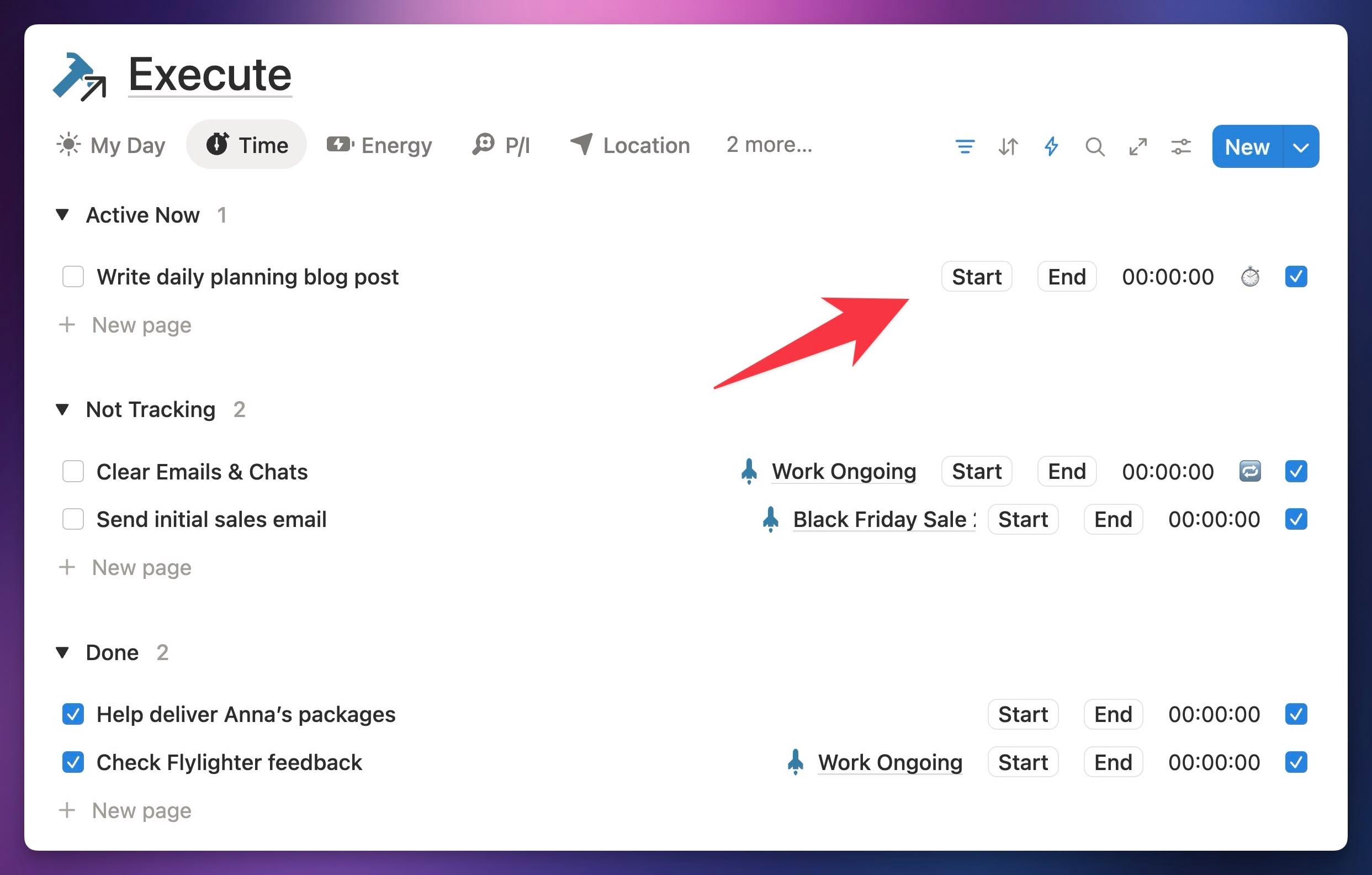
I also added a native time-tracking feature to my system, which lets me track multiple work sessions for any single task.
Similar to the Context Tags, I added this in response to feedback in our customer support community. Personally, I don’t usually time-track my tasks, but I know a lot of folks do and find it useful.
I will share one argument for time-tracking: It can help you get a better sense for how long things take, and thus can help you make more accurate estimates when you’re planning your day.
Humans are pretty famously bad at making time estimates, and when it comes to daily planning, this famous bad-ness can lead you into a cycle where you constantly over-plan and under-deliver. Day after day, you’ll plan to finish ten tasks, then only do three.
I think this is more insidious than it sounds. If this becomes routine, you’re not just getting less done… you’re also building an internal belief that you can’t accomplish what you set your mind to.
It would be far, far better to start out the day with a less-ambitious plan, and then actually see it through.
Time-tracking can help with that, so it’s worth trying it out for a while.
I’m working on a full video tutorial on how to build a Notion-native time tracking system for yourself, which I’ll embed below once it’s finished. In the mean time, you can get Notion-native time tracking in Ultimate Brain.
Alternatively, you can use apps like Toggl to track time outside of Notion.
Copy link to headingWrap-Up
If you take nothing else from this guide, just try making a clean, from-scratch list of tasks tomorrow. You don’t even need to do it in Notion! You could write them down on a sticky note.
I think you’ll be surprised at how more clarity you’ll have about what to work on next if you do this.
If you’re a Notion nerd like I am, try your hand at building the My Day functions into your existing task manager. Alternatively, you can get it all done for you – including the Context Tags and Time Tracker – by grabbing a copy of Ultimate Brain:
Want to turn Notion into a complete productivity system? Ultimate Brain includes all the features from Ultimate Tasks - and combines them with notes, goals, and advanced project management features.
Get $30 off with code SPRING30!
If you found this guide useful, check out some of my other guides as well. I think you’ll like these ones:
- 5 Ways to Build a Habit Tracker in Notion (for Free)
- How to Create Tasks in Notion With Your Voice
- How to Take Perfect Notes with Your Voice Using AI and Notion
I create new guides, videos, and templates that help folks master Notion all the time. If you want to get brief, no-nonsense updates (ok, maybe a bit of non-sense), join my free Notion Tips Newsletter.
I’m usually caught up in big projects, so I won’t email you that often – but when I do, it’ll be good.