

Adding new properties to the databases in Ultimate Brain is easy, and it will allow you to extend and customize your template for your own needs.
In the video below, I’ll show you exactly how to do this. We’ll work through an example, where we’ll add a new Start Date property to the Projects database.
In addition to simply creating the property, we’ll add a Timeline view to the Projects page in order to take advantage of the new property.
Here’s how to add a new property at a glance:
First, unlock your target database. Then, open any page in the database, find the Add a Property button, and add your new property.
Once you’re done, I recommend re-locking your database.
Next, open any page in the database, then click View Details to open up the right-side property panel. You can also click the panel icon at the top-right of the screen to open the panel.

In any of the sections, click Add a Property.

From here, you can select the property’s type and give it a name.
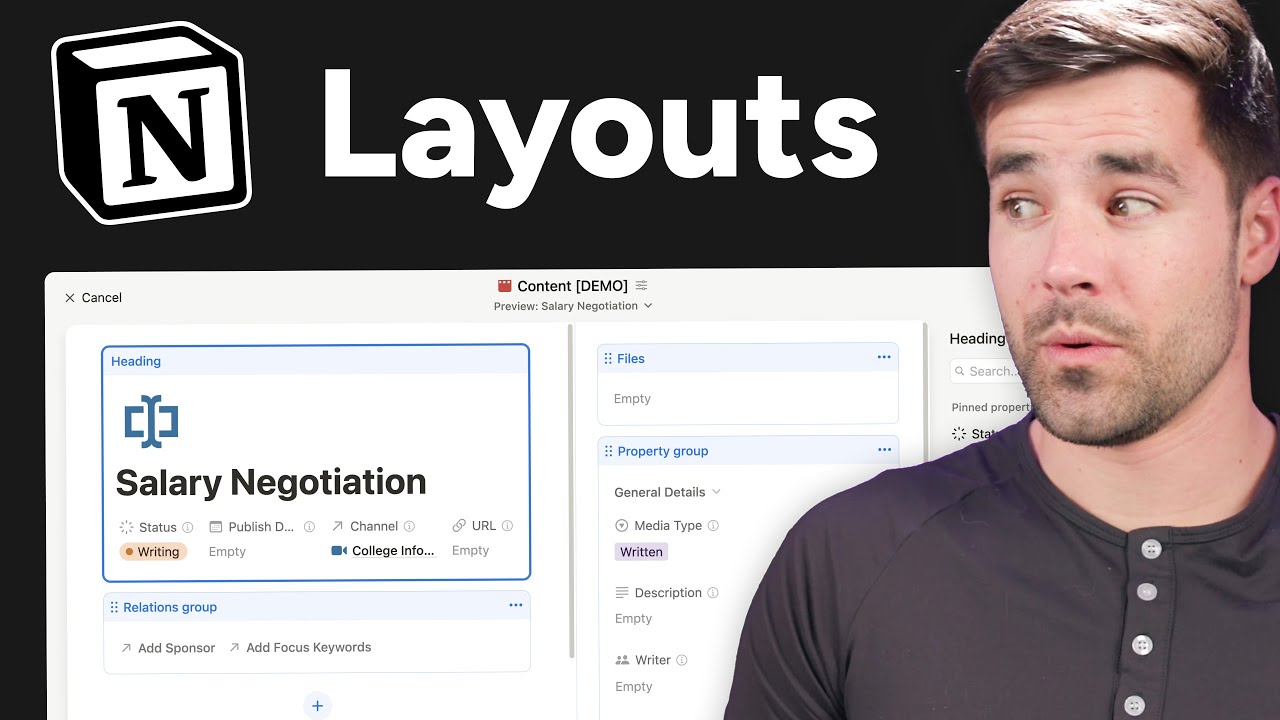
If you’d like to reposition this property—move it to a different section, create a special section for it, or add it to the pinned properties at the top of each page, for example—you can do that by customizing the database’s page layout. Watch this video to learn how: